# How to run API automated tests with Newman on CircleCI.
Postman is a great tool not only for building, but also for testing APIs. In this post, we shall look at how to use Newman, Postman’s command-line collection runner, to run automated tests for an API in a CI/CD pipeline running on CicleCI. Whereas there may be various tools and libraries to test APIs built in a specific language, automation testing with Newman cuts across and thus the steps followed herein can be followed to test an API developed in any programming language. That stated, we shall use a Node.js API in this post.
---
## Tutorial
1. [Setting up](#set-up)
2. [Importing collection and environment](#import-collection)
3. [Integrating with CircleCI](#intergrate-circleci)
### Setting up
Before we start, make sure you have the newman cli installed on your computer. If you do not have it yet, install it globally by simply running
```
$ npm install -g newman
```
Fork and clone [this repository](https://github.com/123MwanjeMike/node-express-realworld-example-app) which has the API we shall be using and change directory into the created folder. Run the commands below to do so.to install it globally.
```
$ git clone https://github.com/123MwanjeMike/node-express-realworld-example-app.git
$ cd node-express-realworld-example-app/
```
Switch to the `00--tutorialStart` branch.
```
$ git checkout 00--tutorialStart
```
Install the dependencies with a package manager(npm, yarn) of your choice. In my case, I’ll be using yarn all throughout.
```
$ yarn install
```
Run the start script to confirm that everything is working fine.
Ps: You need to have MongoDB installed on your machine. If you don’t have it, head over [here](https://docs.mongodb.com/guides/server/install/) to install it or jump right to [Importing collection and environment](#import-collection).
```
$ yarn start
```
Open another terminal and run the test script
```
$ yarn test
```
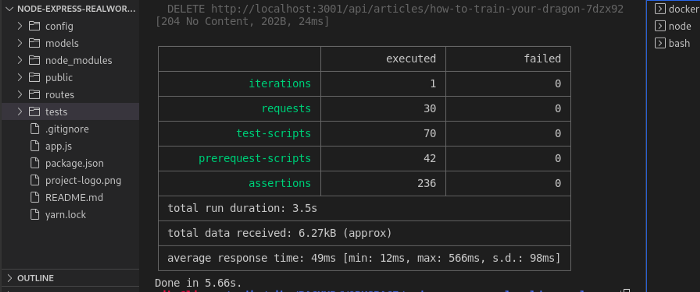
### Importing collection and environment
Now let’s head over to Postman to get our hands dirty. We need to have our collection in Postman and its environment as well. So, open your postman Workspace and click the **Import** button. You can either import from the test folder of your cloned repository or from your forked repository(`00--tutorialStart` branch) on GitHub.
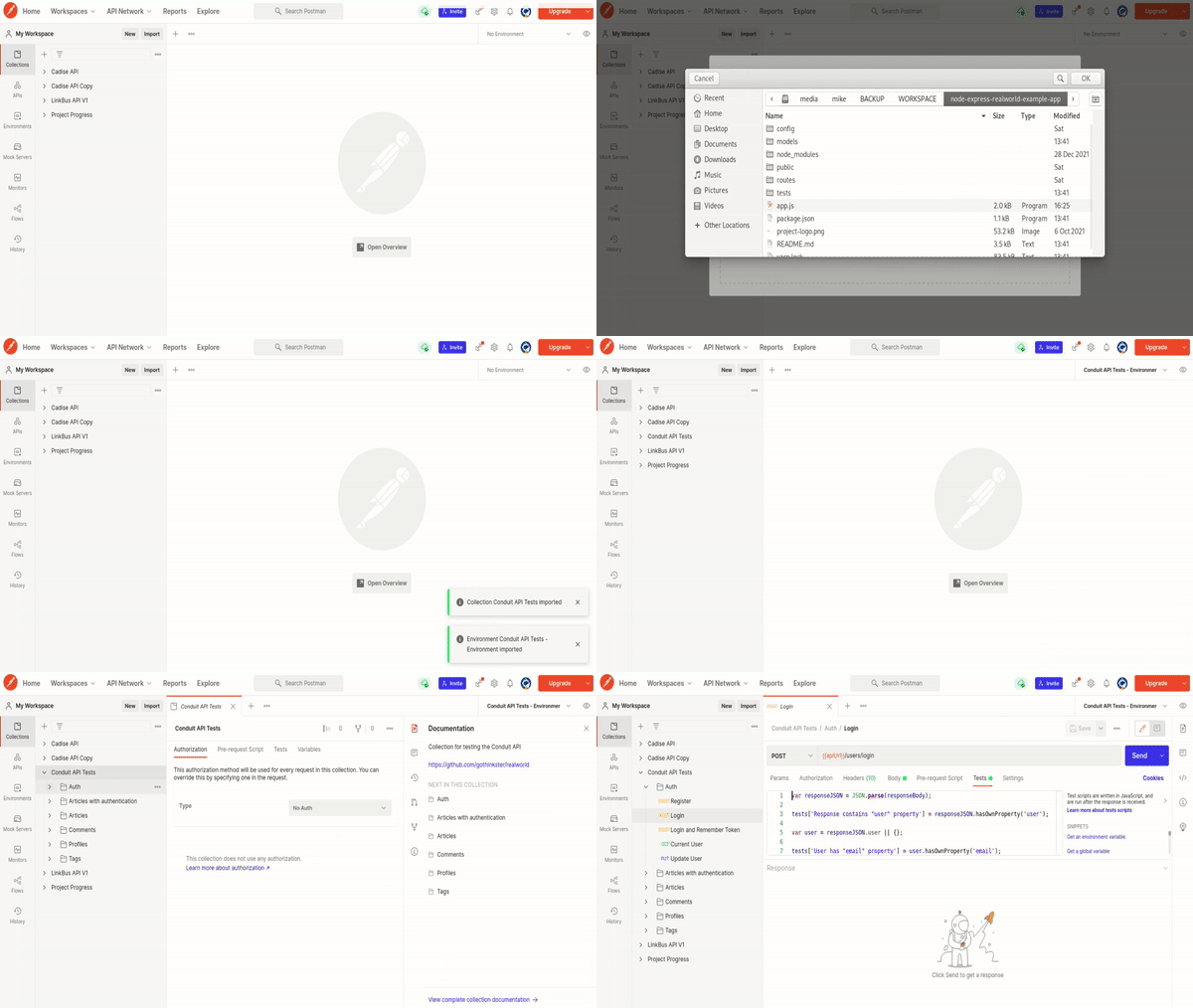
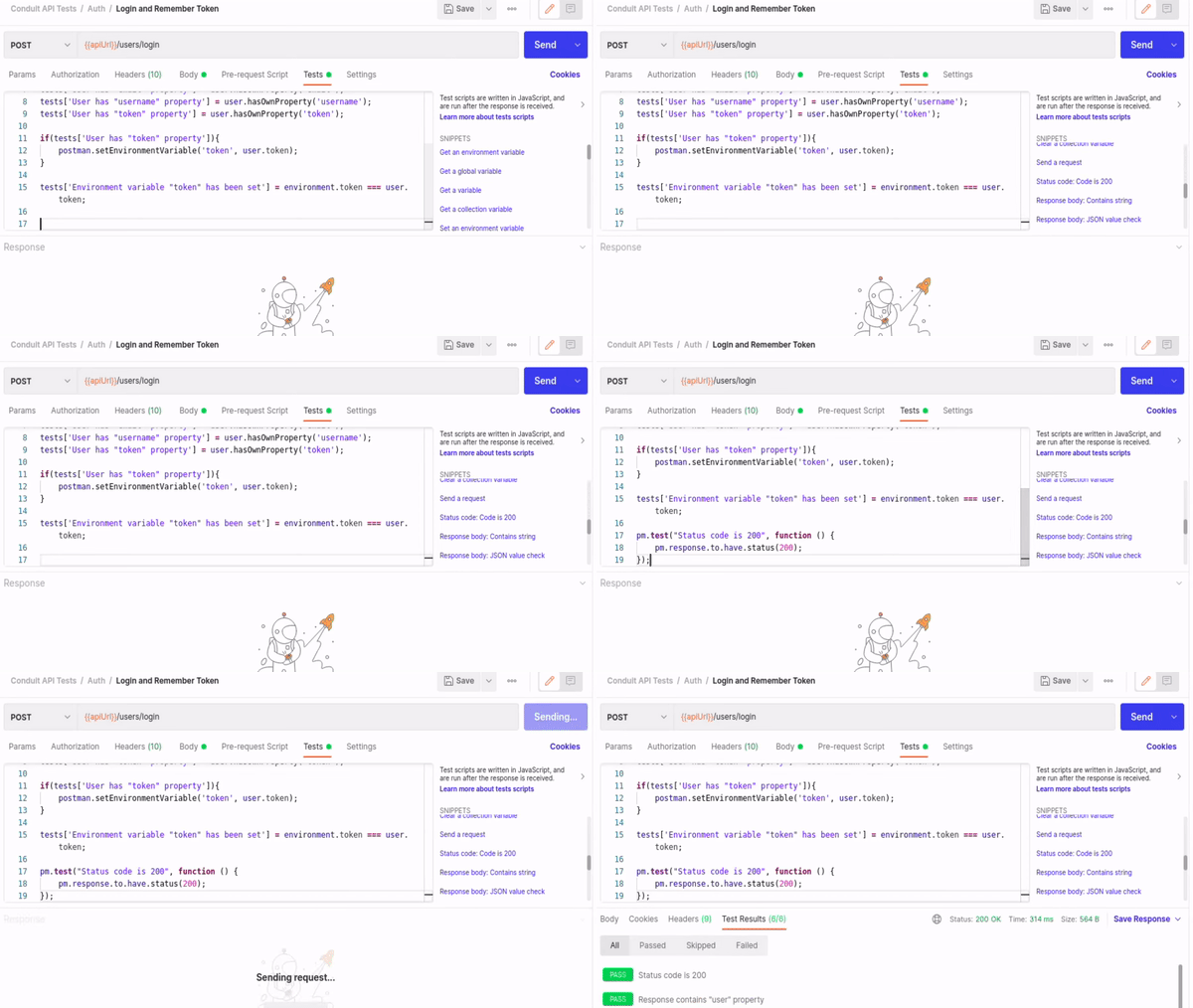
With the import complete, set the environment to `Conduit API Tests — Environment`. We can add one more test of our own. So head over to `Auth/Login and Remember Token` in the _Conduit API Tests_ collection, select the **Tests** tab, and add a test to check that the response status code is 200 from the **SNIPPETS** on the right. Send the request.
### Integrating with CircleCI
We shall now integrate our API in Postman with CircleCI. This way, we shall also be able to trigger and view test builds from within Postman. So, head over to **APIs** and click ‘+’ to create a new API.
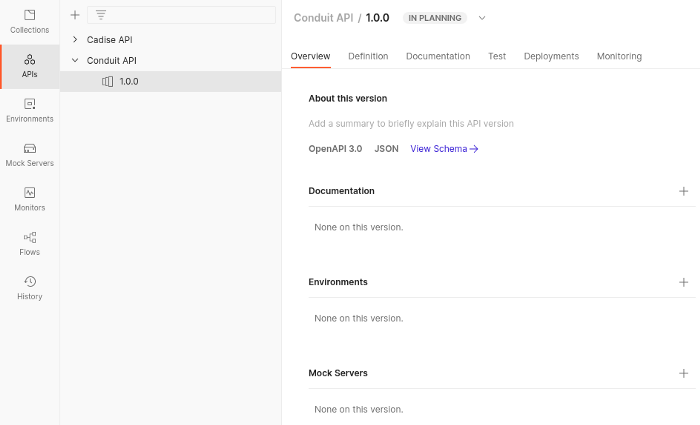
Head over to the **Test** tab and click **Add Test Suite**. Select **Add existing test**, then select `Conduit API Tests`
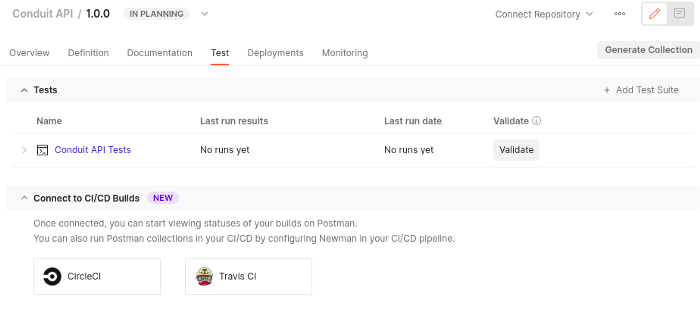
Still at the same page, under **Connect to CI/CD Builds**, select CircleCI. You’ll be presented with a screen such as below.
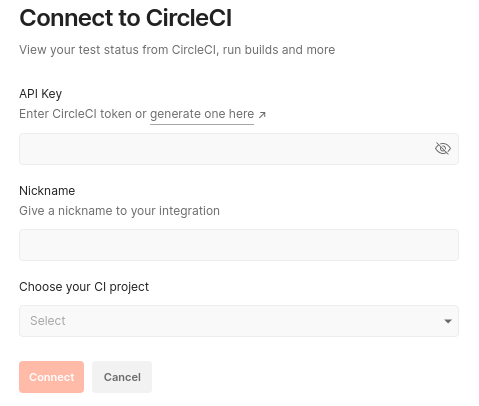
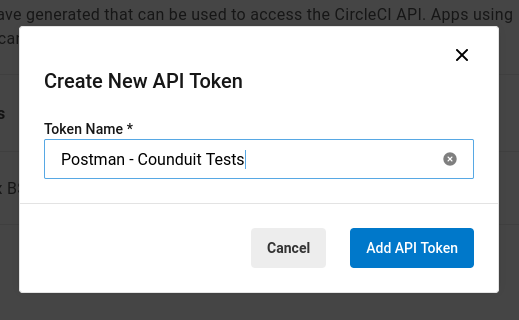
We need to generate an API key for this integration on CircleCI. So click [here](https://app.circleci.com/settings/user/tokens?return-to=https%3A%2F%2Fapp.circleci.com%2Fpipelines%2Fgithub%2FBSE21-13) to go to your CircleCI **User Settings** page, **Personal Access Tokens** section from where you’ll create one. Copy the API token you have added and paste it in the **API Key** input on the Postman screen above.
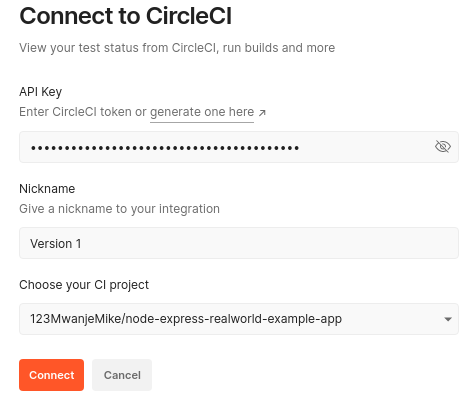
Enter a **Nickname** and select the **CI Project** to run the tests. It’s very likely your forked project is not on that list yet. You want to go back to your CircleCI dashboard and **Set Up Project** for it to reflect on Postman. It’s okay for the first build to fail.
Next we shall generate a Newman configuration that we shall place in our `.circleci/config.yml` file in the project repository. Click **Configure Newman** in the top right corner.
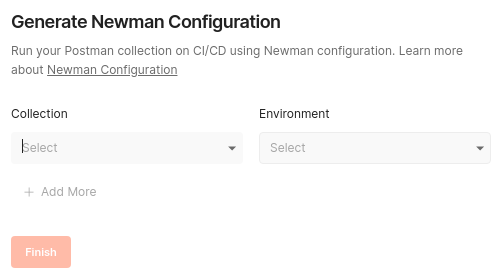
For our environment, we need to create a mock server so that we don’t run our requests against any real data. So click **Mock Servers** on the Postman left menu and click ‘**+**’ to create one. Choose the **Select an existing collection** option.
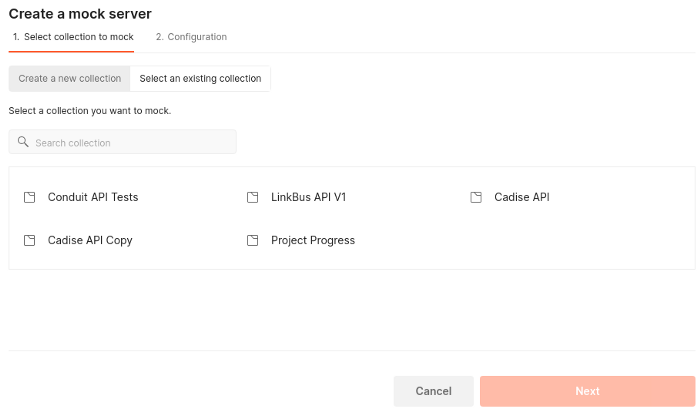
Select the `Conduit API Tests` collection. You’ll proceed to the Configuration screen as below.
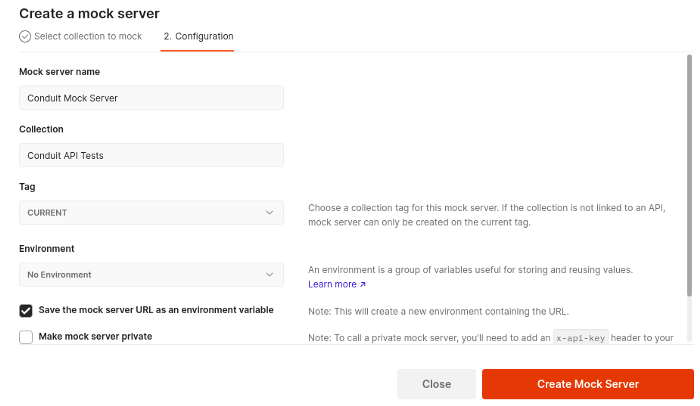
Click the **Create Mock Server** button and copy the Mock URL provided.
Go to **Environments** to update the `apiUrl` variable for the `Conduit API Tests — Environment`. Set its **INITIAL VALUE** to the Mock URL you copied and save the changes.
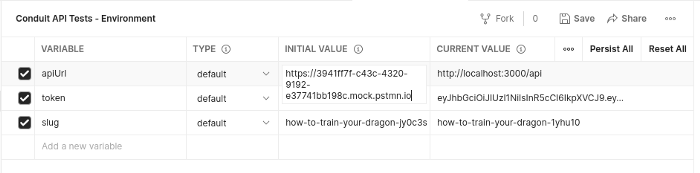
With everything now set, we can head back to generate our Newman configuration. Set the collection to `Conduit APT Tests` and environment to `Conduit APT Tests -Environment`
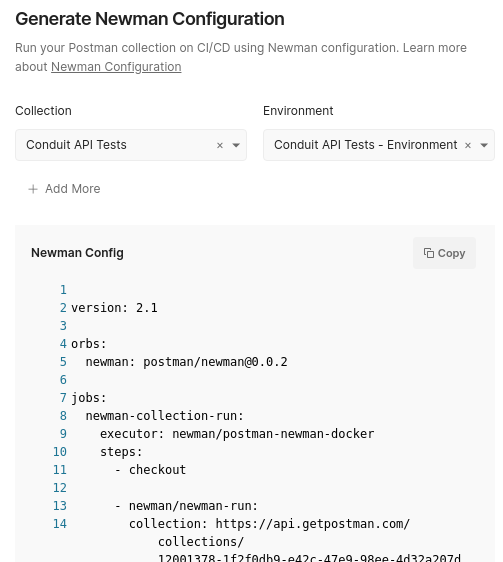
Copy the generated configuration. We shall add it to `.circleci/config.yml` in our code base. So create the file in the project directory with the commands below.
```
$ mkdir .circleci
$ touch .circleci/config.yml
```
Paste the copied configuration in the created file. Create a workflow at the bottom to run your job. The workflow should be similar to that below.
```
workflows:
test-workflow:
jobs:
- newman-collection-run
```
Your entire `.circleci/config.yml` file should look like that below. Take special care of the indention `newman/newman-run` step(lines 13 –15) to avoid indention related errors.
{% gist https://gist.github.com/123MwanjeMike/b796ba84486c114706889ff14cb76dbc file=config.yml %}
We are almost done. However, as you might have noticed, we have two instances of `$POSTMAN_API_KEY` (lines 14 and 15) in our `.circleci/config.yml` file and these must be substituted with an actual value on CircleCI. To create a Postman API Key, head over [here](https://go.postman.co/settings/me/api-keys) and click **Generate API Key**. Copy the key and go to the project settings on CircleCI. Add an environment variable called `POSTMAN_API_KEY` and paste the Postman API Key in the value box.
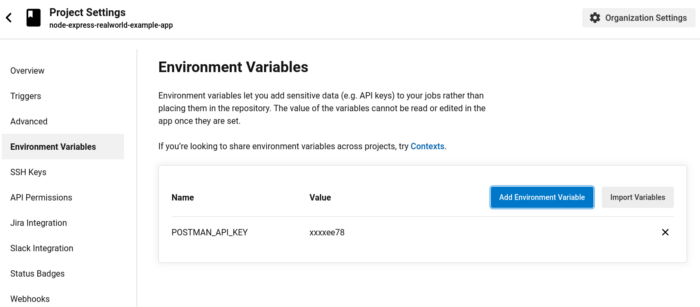
While still on CircleCI, go to the **Organization Settings** > **Security** > **Orb Security Settings**, and select **Yes** to allow use of third-party orbs. This is because in our CircleCI configuration, we use `newman: postman/newman@0.0.2` on line 5 which is not a default CircleCI orb.
Commit and push the changes to GitHub
```
$ git add .circleci/config.yml
$ git commit -m "add circleci config"
$ git push origin
```
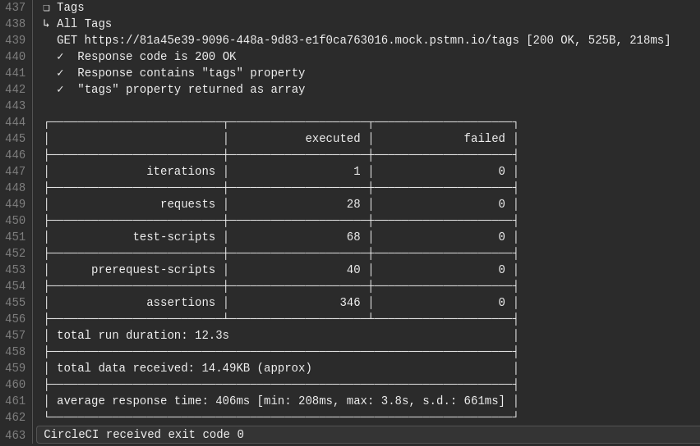
Yeeey!
All our tests passed. We can also view our build history on Postman.
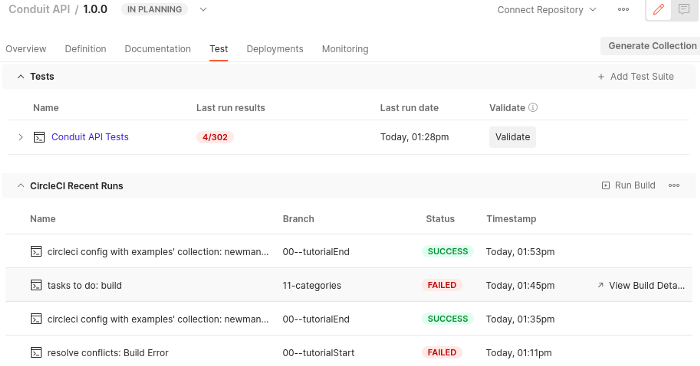
---
## Conclusion
As you too have seen, testing your API with Postman is quite basic and you do not need to install any other testing packages into your project like mocha, jest, chai-http for automated testing. All you need is some basic understanding of JavaScript to write test cases on Postman.
I hope you enjoyed this post and wouldn't hesitate to leave me a heart or comment.
_Happy coding!_
### Further reading
1. [Writing Postman tests](https://learning.postman.com/docs/writing-scripts/test-scripts/)
2. [Newman](https://www.npmjs.com/package/newman)
3. [Postman CI Integrations](https://learning.postman.com/docs/integrations/ci-integrations/)